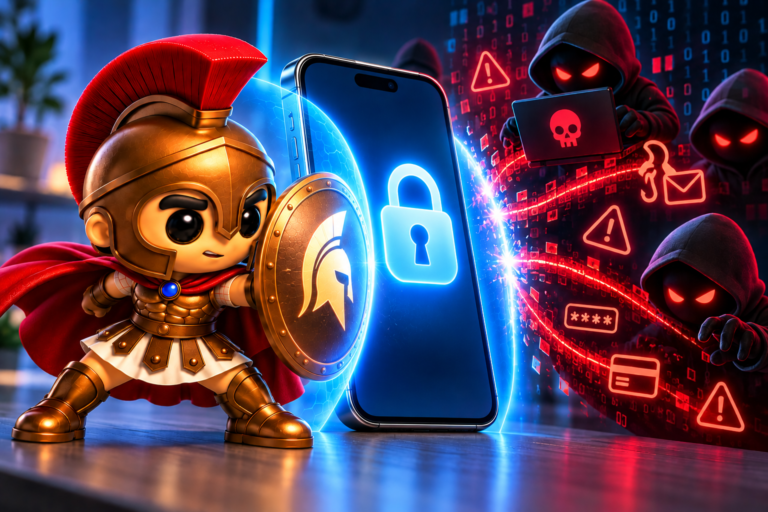
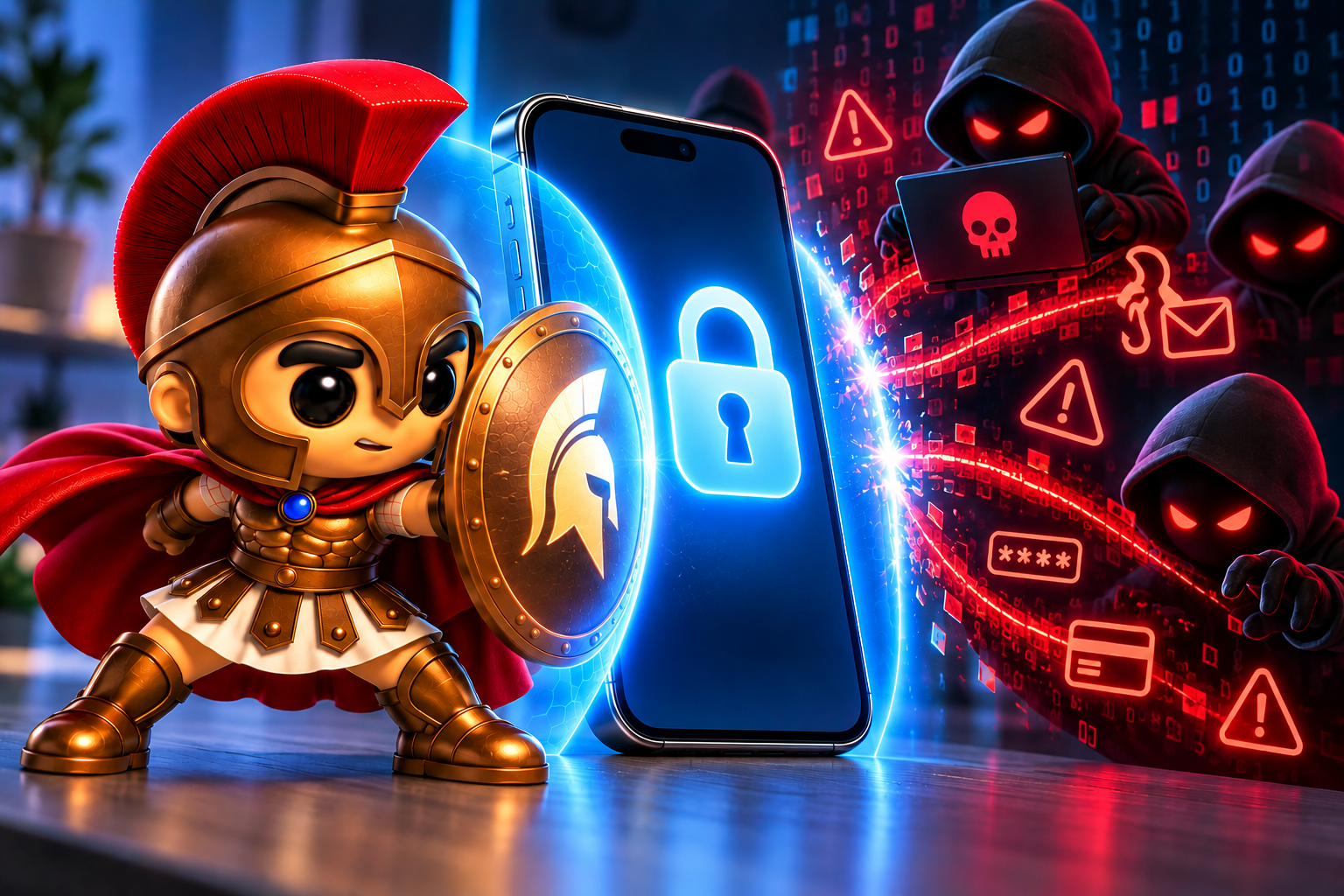
Your smartphone probably knows more about you than almost any other device you own.
It contains your emails, photographs, contacts, messages, banking apps, social media accounts and potentially access to your business systems. If someone gains access to your phone or the accounts connected to it, they could obtain sensitive information, impersonate you or even access your money.
Despite this, many people spend more time protecting their computers than securing their phones.
The good news is that you don’t need to be a cybersecurity expert to make your smartphone much harder to compromise.
Whether you use an iPhone or an Android device, a few simple changes can significantly improve your security.
Here’s how to protect your phone from hackers and keep your personal information safer.
1. Keep Your Phone’s Software Up to Date
One of the simplest and most important things you can do is install software updates promptly.
Apple and Android device manufacturers regularly release updates that fix security vulnerabilities, improve performance and address potential weaknesses.
If you keep postponing updates, you could leave your phone exposed to security problems that have already been identified and fixed.
What should you do?
- Enable automatic operating system updates where available.
- Install security updates as soon as practical.
- Keep your apps updated through the official app store.
- Check whether your phone is still receiving security updates.
- Consider replacing devices that no longer receive essential security support.
Older phones can continue working perfectly well, but if security updates have ended, they may become increasingly risky to use for sensitive activities such as banking.
The UK National Cyber Security Centre recommends installing updates promptly and downloading apps from official stores.
2. Use a Strong Screen Lock
Your phone might be protected by Face ID, a fingerprint scanner or a PIN, but how strong is that protection?
If someone gets hold of your unlocked phone — or guesses a weak PIN — they could potentially access your messages, saved accounts and personal information.
Avoid easily guessed codes such as:
- 1234
- 0000
- Your date of birth
- Repeated digits
- Numbers that someone could guess from your social media profiles
Instead, choose a longer PIN or passcode that isn’t connected to personal information.
Where supported, use fingerprint or facial recognition alongside your passcode for convenient everyday protection.
A strong screen lock is particularly important if you use your phone for online banking, work emails or password management.
3. Be Careful What You Click
You don’t necessarily need someone to break into your phone directly for your information to be stolen.
Sometimes, all they need is for you to click a convincing link.
Phishing scams can arrive through text messages, emails, social media messages and even messaging apps.
You might receive a message claiming to be from:
- Your bank
- Royal Mail or another delivery company
- HMRC
- A mobile network provider
- A shopping website
- A colleague or family member
The message might claim there’s a problem with a delivery, an unpaid bill or suspicious activity on your account.
It may then ask you to click a link and enter your password, banking information or verification code.
How to spot a suspicious message
Look out for:
- Unexpected requests for personal information.
- Messages creating a sense of urgency.
- Links to unfamiliar or misspelt website addresses.
- Unexpected attachments.
- Requests to install an app or allow remote access.
- Messages asking for passwords or one-time security codes.
Remember that scammers can make messages look remarkably convincing.
If a message claims to come from your bank or another organisation, open its official app or type its known website address into your browser instead of following the link.
If a friend or colleague unexpectedly asks for money or sensitive information, verify the request using a different communication method.
4. Only Download Apps You Trust
Apps can request access to information and features on your phone, including your camera, microphone, location, contacts and files.
Some permissions are necessary for an app to function. Others might be unnecessary or excessive.
For example, why would a simple torch app need access to your contacts?
Follow these app security rules
- Download apps from the official Apple App Store or Google Play Store.
- Check the developer’s name and reviews before installing unfamiliar apps.
- Review the permissions an app requests.
- Remove apps you no longer use.
- Avoid installing apps from unfamiliar websites.
- Be suspicious of apps advertised through unexpected messages or pop-ups.
Official app stores provide important security checks, but they don’t guarantee that every app is trustworthy.
Android devices also have Google Play Protect, which helps detect harmful apps and can warn users about security risks.
5. Protect Your Accounts With Strong Passwords and MFA
Your phone may be secure, but what about the accounts you access through it?
If someone steals your email password, they may be able to reset passwords for other services linked to that email address.
This makes your primary email account particularly important to protect.
Use unique passwords
Never reuse the same password across multiple important accounts.
If one website suffers a data breach, reused passwords could allow criminals to try accessing your other accounts.
A reputable password manager can help you generate and store unique passwords without having to remember them all.
Enable multi-factor authentication
Multi-factor authentication (MFA) adds another layer of protection beyond your password.
Depending on the service, this might involve an authenticator app, a security key or another verification method.
Where available, consider phishing-resistant methods such as passkeys or security keys for important accounts.
Never share a one-time verification code with someone who contacts you unexpectedly, even if they claim to be from your bank, mobile provider or IT support team.
6. Be Careful When Using Public Wi-Fi
Free Wi-Fi in cafés, hotels, airports and other public places is convenient, but you should still take care when connecting.
Scammers can create fake hotspots with names designed to look like legitimate networks. An unsecured or compromised network can also expose you to certain risks.
How to use public Wi-Fi more safely
- Check the network name with the venue before connecting.
- Avoid networks that look suspicious or require unusual information.
- Disable automatic connection to unfamiliar Wi-Fi networks.
- Keep your phone and apps updated.
- Use HTTPS websites and official apps.
- Consider a reputable VPN when you need additional protection.
A VPN encrypts traffic between your device and the VPN service, but it doesn’t protect you from every threat. It won’t stop you entering your password into a phishing website or downloading a malicious app.
For particularly sensitive tasks, use a trusted connection where possible.
7. Check Your App Permissions and Privacy Settings
Even legitimate apps can collect more information than you realise.
Your phone’s privacy settings allow you to control which apps can access certain features and information.
Take a few minutes to review access to:
- Location
- Camera
- Microphone
- Contacts
- Photos
- Bluetooth
- Nearby devices
For example, a navigation app may need location access while you’re using it. A simple calculator probably doesn’t.
Where possible, choose options such as Allow only while using the app rather than granting permanent access.
Also review which apps can display notifications on your lock screen. Message previews can expose private information to someone looking at your phone.
These checks are useful for protecting your privacy, even if you have no reason to believe your phone has been hacked.
8. Turn On Your Phone’s Theft Protection Features
Phone theft isn’t just about losing an expensive device. It can also put your personal data and accounts at risk.
Fortunately, modern smartphones offer features designed to help protect your information if your phone goes missing.
If you use an iPhone
Consider enabling Stolen Device Protection.
This feature adds extra security requirements for certain sensitive actions, such as accessing saved passwords or changing important account settings. Depending on the action and circumstances, it can require biometric authentication and a security delay.
You should also ensure that Find My is enabled so you can locate or remotely mark a missing device as lost.
If you use Android
Check the theft protection features available on your device.
Depending on your model and Android version, these may include Theft Detection Lock, Offline Device Lock, Remote Lock and Google’s Find Hub service.
These features can help secure a missing phone and, where supported, locate or remotely lock it. Availability varies by device and software version.
Important: Set these features up before your phone goes missing. They are much more useful when they’re already enabled.
9. Don’t Ignore Strange Pop-Ups or Security Warnings
Have you ever visited a website and seen a message claiming your phone is infected with a virus?
Perhaps it tells you to click a button immediately to remove the threat.
Be cautious.
Websites sometimes display fake security warnings designed to frighten you into downloading an app, paying for a bogus service or handing over personal information.
If you see an unexpected warning:
- Don’t click the suggested download or payment link.
- Close the suspicious browser tab.
- Don’t call any telephone number shown in the pop-up.
- Check your device’s security settings directly.
- Remove any unfamiliar apps you recently installed, if safe to do so.
Don’t assume every unusual pop-up means your phone has been hacked. Many are simply attempts to trick you.
10. Watch Out for SIM-Swap Scams
A SIM-swap scam occurs when a criminal manages to transfer your mobile number to a SIM card or eSIM they control.
If successful, they may receive calls and text messages intended for you, potentially including password-reset messages or verification codes.
This can put accounts at risk, especially if they rely heavily on SMS for authentication.
How can you reduce the risk?
- Be suspicious if your phone unexpectedly loses mobile service without a clear explanation.
- Contact your mobile network provider through its official contact details if you suspect unauthorised SIM activity.
- Secure your mobile provider account with a strong password and any available additional protections.
- Use an authenticator app, passkey or security key instead of SMS where supported.
- Protect your email account, which may be used to reset other accounts.
A sudden loss of signal doesn’t automatically mean a SIM swap has occurred, but unexplained service loss is worth investigating promptly.
11. Do You Need Antivirus on Your Phone?
This depends on the device and how you use it.
iPhones and Android phones already include security protections, although their design and capabilities differ.
On Android, built-in protections such as Google Play Protect help detect potentially harmful apps. iPhones also have built-in security controls and restrictions on how apps operate.
For most users, the best starting point is to:
- Keep the operating system updated.
- Install apps from official stores.
- Use strong authentication.
- Review app permissions.
- Avoid suspicious links and downloads.
- Enable the security features built into your device.
Be wary of apps promising to remove every virus or make your phone completely unhackable. No security product can guarantee that.
If you’re considering additional mobile security software, choose a reputable provider and understand exactly what protection it offers.
What Should You Do If You Think Your Phone Has Been Hacked?
If something seems wrong, don’t panic — but don’t ignore it either.
Unexpected account alerts, unfamiliar apps, unusual permission changes or messages you didn’t send are reasons to investigate. They don’t necessarily prove your phone has been compromised.
If you suspect a genuine security problem, take these steps.
Step 1: Secure Your Important Accounts
Using a device you trust, change the password for your primary email account and any other accounts you believe may be affected.
Review recent sign-ins, sign out unfamiliar sessions and enable MFA if it isn’t already active.
Step 2: Contact Your Bank if Necessary
If you notice suspicious banking activity or believe someone has accessed your financial accounts, contact your bank immediately using its official app, website or telephone number.
Don’t use contact details provided in a suspicious message.
Step 3: Check Your Phone
Review recently installed apps, permissions, device management settings and security alerts.
Remove unfamiliar apps where appropriate, and install outstanding security updates.
If you suspect sophisticated spyware or that someone is monitoring you, seek specialist advice before making changes that could alert the person responsible.
Step 4: Contact Your Mobile Provider
If your phone suddenly loses service or you suspect your SIM has been taken over, contact your provider and ask it to investigate.
Step 5: Get Professional Help
If you can’t establish what has happened, or the phone continues behaving suspiciously, seek assistance from a reputable technical support provider.
A factory reset may sometimes be appropriate, but it can erase data and won’t necessarily resolve every account-level compromise. Back up important information carefully and make sure your accounts are secured first.
Protecting Your Phone Is Easier Than You Think
Your smartphone is an essential part of everyday life, but it also holds a huge amount of personal and potentially sensitive information.
You don’t need to be a technology expert to make it safer.
Keeping your software updated, using strong authentication, being cautious with messages and securing your important accounts will help reduce your exposure to common threats.
Most importantly, remember that your phone’s security is only one part of the picture. Your email, banking, social media and work accounts all need protecting too.
Need Help Keeping Your Devices Secure?
At Spartan IT Systems, we help businesses and home users across Suffolk make technology safer, more reliable and easier to manage.
Whether you’re concerned about mobile security, protecting business email, improving your passwords or securing your wider network, we can help you understand the risks and take practical steps to reduce them.
Want to improve your digital security? Get in touch with Spartan IT Systems for friendly, practical IT advice.