Your computer may have powerful hardware, but that doesn’t necessarily mean it is running as fast as it should.
We regularly see PCs where expensive components are being held back by a simple setting, an incorrectly installed component, outdated software or something running unnecessarily in the background.
Some of these problems can make a surprisingly large difference to gaming performance, loading times and the general responsiveness of Windows.
This guide from Spartan IT Systems walks through some of the most common PC performance problems we find and explains how you can check them yourself.
Important: Not every recommendation applies to every computer. Settings involving the BIOS or physical components should only be changed if you are comfortable doing so and we take no responsibility for issues. If you’re unsure, Spartan IT Systems can check your PC for you.
If you don’t want to read the entire guide, start with these common problems:
Difficulty: Advanced
One of the most common performance settings we find disabled on custom-built and gaming PCs is the memory performance profile.
Modern performance memory is often advertised at speeds such as:
However, installing memory rated at these speeds does not always mean your computer is actually running it at that speed.
Intel systems generally call the setting XMP – Extreme Memory Profile, while modern AMD systems commonly use EXPO – Extended Profiles for Overclocking.
Intel and AMD both describe these technologies as predefined memory profiles that allow compatible memory to operate at its intended performance settings.
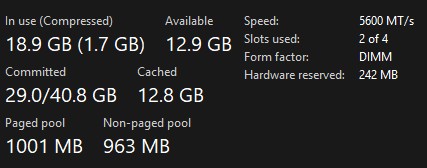
Open Task Manager:
Compare this with the rated speed of your RAM.
The setting is normally found inside your computer’s BIOS/UEFI.
Depending on your motherboard manufacturer it may be labelled:
Normally you select Profile 1, save the settings and restart.
XMP and EXPO are technically memory overclocking technologies. Although the profiles are supplied for compatible memory, not every combination of processor, motherboard and RAM is guaranteed to operate perfectly at every advertised speed.
If your PC becomes unstable after enabling it, return the setting to its previous value.
Difficulty: Hardware Check
A PC may have plenty of memory but still be limiting memory bandwidth because only one RAM module is installed.
For example:
1 × 16GB RAM
may provide less memory bandwidth than:
2 × 8GB RAM
on a system designed to use multiple memory channels.
This can particularly affect games and applications that frequently access system memory.
Open:
Task Manager → Performance → Memory
Look for information such as:
If only one module is installed, adding a correctly matched second module may improve memory performance.
Ideally memory modules should be matched for:
Using a matched kit is preferable to mixing unrelated RAM modules.
Difficulty: Hardware Check
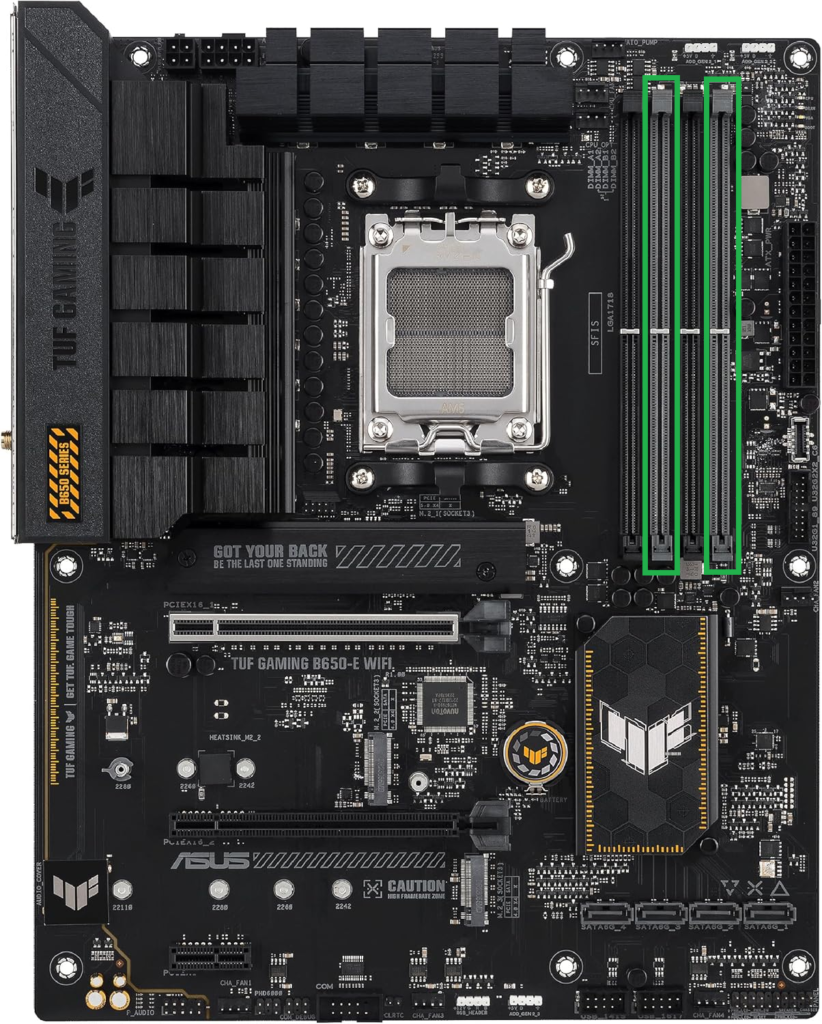
Having two RAM modules installed does not automatically mean they are installed in the ideal motherboard slots.
Most four-slot motherboards recommend a specific pair when using two modules.
Very commonly this is:
A2 + B2
rather than:
A1 + B1
but this varies between motherboards.
Find your motherboard manual and look for:
Memory installation
or:
Recommended memory configuration
If you have two modules installed, compare their positions with the motherboard manufacturer’s recommendation.
Do not assume the correct slots are simply the first two sockets beside each other.
Difficulty: Easy
Sometimes the problem isn’t memory speed — there simply isn’t enough memory available.
Modern browsers, games, communication software and background applications can consume substantial amounts of RAM.
Open:
Task Manager → Performance → Memory
Use the computer normally and watch memory usage.
If memory usage regularly approaches its maximum while your computer is slowing down, additional RAM may help.
Check whether unnecessary programs are consuming memory first.
Adding more RAM won’t fix badly configured software.
Difficulty: Hardware Check
Large motherboards often have several slots that physically look capable of accepting a graphics card.
That doesn’t mean they all provide the same connection to the processor.
For most gaming PCs, the primary graphics card should be installed in the motherboard’s main PCI-E graphics slot — normally the large slot closest to the CPU.
Look at your motherboard manual and identify the recommended slot for a single graphics card.
It may be labelled something similar to:
PCIEX16_1
If the GPU is installed in a secondary slot, check whether that slot operates at a lower speed.
Some motherboards have unusual PCI-E configurations, so always check the manual rather than relying purely on the position of the slot.
Difficulty: Easy
This is surprisingly common.
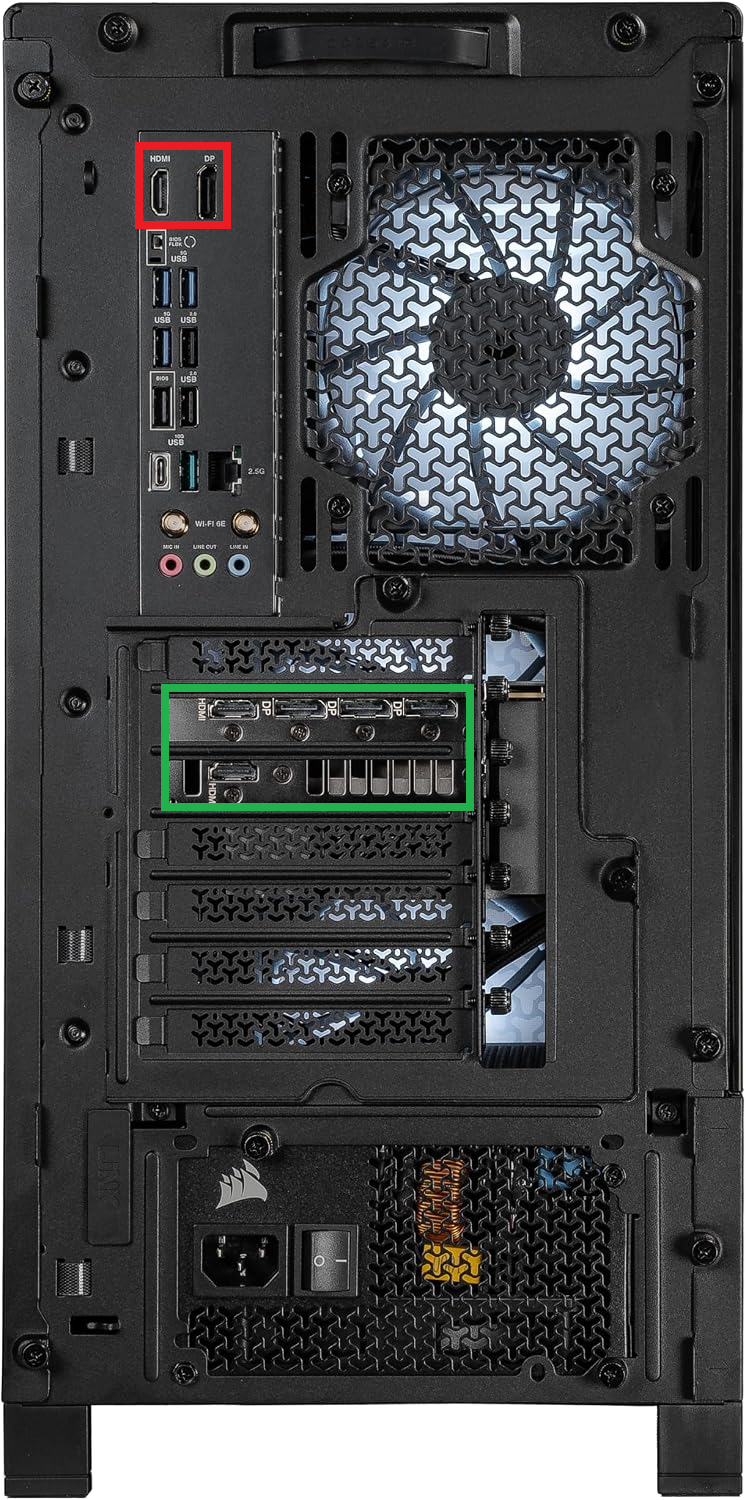
If your PC has a dedicated NVIDIA, AMD or Intel graphics card, your monitor would normally be connected directly to that graphics card.
On many desktops there are also HDMI or DisplayPort connections higher up on the back of the PC. These belong to the motherboard.
The graphics card connections are usually:
If your monitor is connected to the motherboard instead, your computer may be using integrated graphics rather than the dedicated graphics card.
Difficulty: Easy
Buying a 144Hz, 165Hz, 240Hz or faster gaming monitor doesn’t automatically mean Windows is using its maximum refresh rate.
We’ve seen high-refresh-rate monitors running at only 60Hz simply because the setting was never changed.
Microsoft provides the refresh-rate setting under Windows Advanced Display settings.
Go to:
Settings → System → Display → Advanced display
Find:
Choose a refresh rate
You may see options such as:
Choose the appropriate refresh rate for your monitor.
Check:
Some displays only support their maximum refresh rate using particular ports or connection standards.
Difficulty: Advanced
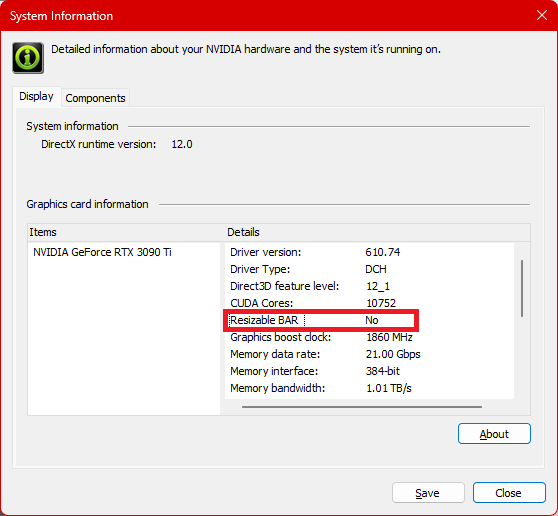
Resizable BAR is a PCI Express feature supported by many modern gaming systems.
Rather than the processor accessing graphics memory in smaller sections, compatible systems can allow access to a much larger portion of the graphics card’s memory.
NVIDIA describes Resizable BAR as a feature that can improve performance in supported games, while AMD offers similar functionality through Smart Access Memory on compatible hardware.
Open:
NVIDIA Control Panel → System Information
Look for:
Resizable BAR
It should show whether the feature is enabled.
Resizable BAR normally requires compatible:
BIOS options commonly include:
Above 4G Decoding
and:
Resizable BAR Support
Do not simply enable random BIOS options based on an online video.
Check compatibility for your particular motherboard and graphics card first.
Difficulty: Easy
Graphics drivers are regularly updated to address:
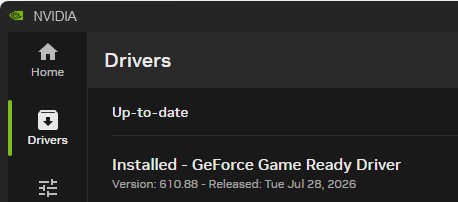
NVIDIA recommends its Game Ready drivers for gaming systems and AMD provides current Radeon drivers through its official support tools.
For NVIDIA:
Use the NVIDIA App or NVIDIA’s official driver website.
For AMD:
Use AMD Software: Adrenalin Edition or AMD’s official support website.
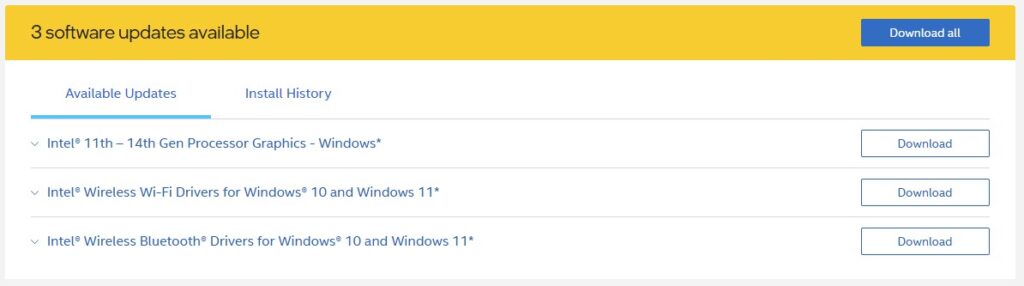
For Intel:
Use the appropriate Intel graphics driver or your computer manufacturer’s recommended driver.
Graphics drivers should normally come directly from:
Avoid websites claiming they can update every driver on your computer automatically.
Difficulty: Intermediate
Some systems contain both:
Occasionally Windows or an application may use the lower-powered integrated graphics processor instead of the gaming GPU.
Open Task Manager while the game is running.
Look under:
Performance
You may see:
The GPU names should tell you which graphics processor is being used.
You can also check:
Settings → System → Display → Graphics
and review the graphics preference for individual applications.
Difficulty: Easy
Not every SSD offers the same performance.
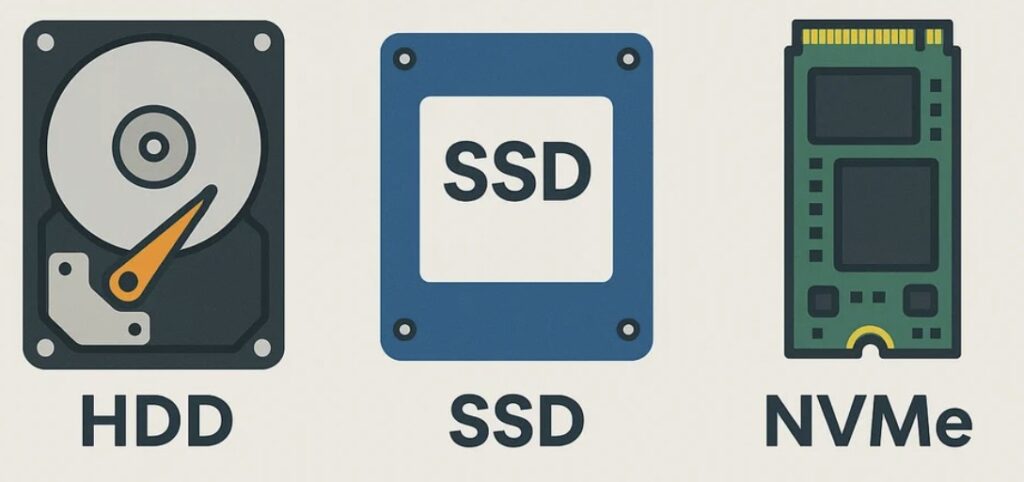
A system might contain:
If Windows is installed on a fast NVMe SSD but your games are stored on an old mechanical drive, loading performance can be very different.
Open:
Task Manager → Performance
Select each disk.
Windows normally identifies whether the drive is an:
For more detailed information, check the exact drive model.
Prioritise:
Older games, photographs, videos and archives may be perfectly acceptable on slower storage.
Difficulty: Hardware Check
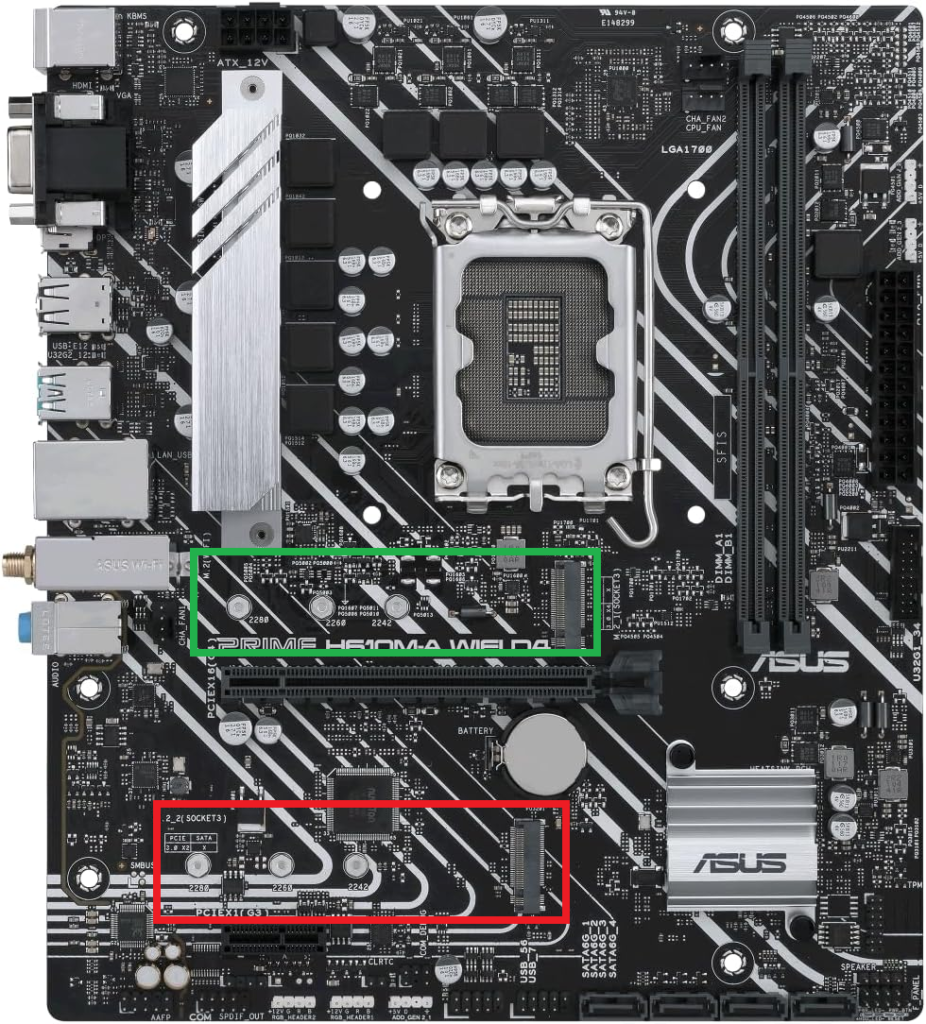
A motherboard may have several M.2 SSD sockets, but those sockets aren’t necessarily identical.
Depending on the motherboard, different sockets may support different PCI-E generations or connect to different parts of the system.
You could potentially have:
PCI-E 5.0 M.2
PCI-E 4.0 M.2
and another slot with different bandwidth or sharing arrangements.
Find the storage section of your motherboard manual.
Look for:
Then compare this with the specification of your SSD.
If your SSD isn’t capable of exceeding its current slot’s speed, moving it won’t make it faster.
Difficulty: Easy
Computers can slow down when their main storage drive has very little free space remaining.
Windows also needs free space for:
Microsoft specifically lists freeing disk space as one of its Windows performance recommendations.
Go to:
Settings → System → Storage
If your main drive is around 90–95% full or higher, freeing some space is a sensible first step.
This isn’t a strict performance threshold — it is simply a useful warning point.
Windows includes Storage Sense, which can help clean temporary and unnecessary files.
Go to:
Settings → System → Storage → Storage Sense
You can also uninstall games and applications you no longer use.
Be cautious with third-party “PC cleaning” programs promising to automatically delete thousands of unnecessary files.
Difficulty: Intermediate
Not every slow drive is simply an old drive.
Storage devices can develop faults.
Warning signs can include:
If you suspect a failing drive, back up important data before attempting aggressive repairs or optimisation.
A failing storage device should be treated as a data-protection problem first and a performance problem second.
Difficulty: Intermediate
Processors and graphics cards generate heat.
If temperatures become too high, modern components can reduce their operating speed to protect themselves.
This is known as thermal throttling.
The computer may therefore appear completely normal when first switched on but become slower during:
You may notice:
Different processors and graphics cards have different operating limits.
The more important question is whether the component is reaching its thermal limit and reducing performance.
Difficulty: Easy / Intermediate
Even if your processor cooler is working correctly, the computer still needs to move hot air out of the case.
Check that:
Turn the computer off before cleaning internally.
Avoid allowing fans to spin uncontrollably when using compressed air.
If you are uncomfortable opening your computer, have it professionally cleaned.
Difficulty: Intermediate
Your graphics driver isn’t the only important driver.
The motherboard chipset also needs the appropriate software and drivers to communicate correctly with Windows.
AMD provides dedicated Ryzen chipset driver packages, for example.
Identify your motherboard or computer model and visit the manufacturer’s support page.
Look for:
Chipset Drivers
For AMD desktop systems, chipset drivers are also available directly from AMD.
There is normally no reason to install software that claims your computer has 20, 30 or 40 “outdated drivers” and asks you to pay to fix them.
Use:
where appropriate.
Difficulty: Advanced
Your motherboard BIOS controls how much of your hardware operates before Windows even starts.
BIOS updates can sometimes provide:
Some features such as Resizable BAR may also depend on BIOS support.
No.
If your computer is working correctly, you shouldn’t automatically assume that installing every BIOS release will make it faster.
However, if you are experiencing:
checking the BIOS version is worthwhile.
Only download BIOS files from the motherboard or computer manufacturer.
Never interrupt a BIOS update.
If you are unsure about performing one, get professional assistance.
Difficulty: Easy
Windows can adjust performance depending on how aggressively it tries to save electricity.
Microsoft currently provides options including:
and states that Best performance maximises performance when required.
Go to:
Settings → System → Power & battery
Find:
Power mode
If maximum performance is your priority, you may want to test Best performance.
Be more careful.
Higher-performance modes can increase:
Balanced is often appropriate for normal laptop use.
Difficulty: Easy
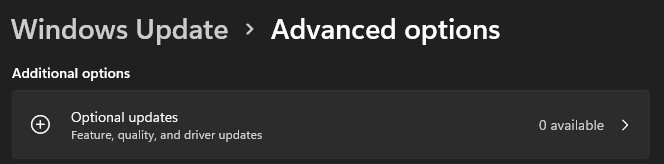
A computer that hasn’t been updated for a long time may also be missing:
Go to:
Settings → Windows Update
Install appropriate updates and restart the computer if required.
If your computer is working correctly, you don’t need to compulsively install every optional driver offered.
Manufacturer-specific drivers can sometimes be preferable.
Difficulty: Easy
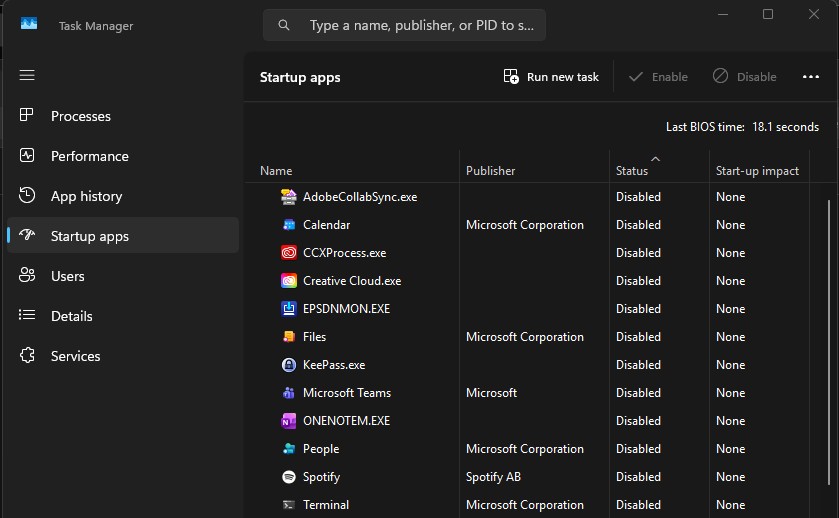
A common reason for Windows feeling slow is simply that too much software starts automatically.
Applications may continue running even if you aren’t actively using them.
Microsoft provides startup controls directly within Windows.
Go to:
Settings → Apps → Startup
or:
Task Manager → Startup apps
Review what loads automatically.
Common examples include:
Only disable programs you recognise.
Something being listed as a startup application does not automatically mean it is unnecessary.
If you don’t know what an item does, check before disabling it.
Difficulty: Easy / Intermediate
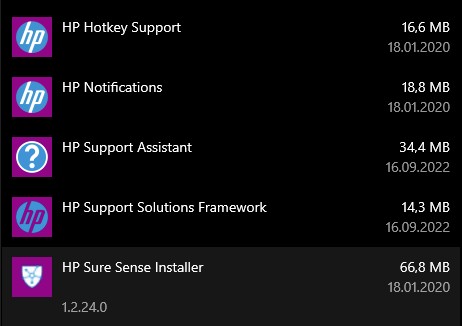
Modern PCs can accumulate a surprising number of hardware utilities.
Examples include software for:
Individually these programs may use very little.
The problem arises when several of them run permanently at the same time.
Press:
Ctrl + Shift + Esc
Look under:
Processes
See which programs are using:
If you no longer use a piece of software, uninstalling it is generally better than simply preventing it from opening.
Some manufacturer utilities control important laptop functions such as:
Don’t remove these without checking what they do.
Difficulty: Intermediate
Security software is important.
However, some security suites include many additional components such as:
These can add additional background activity.
Windows also includes Microsoft Defender Antivirus as part of Windows Security. Microsoft documents how Defender interacts with third-party antivirus products rather than recommending that users simply run multiple competing real-time antivirus engines.
Instead, check:
Your PC should still have appropriate malware protection.
Difficulty: Easy
Be very cautious of applications promising things such as:
“Fix 2,846 PC problems”
“Increase your gaming FPS by 300%”
“Clean your registry for maximum speed”
“Update all your drivers automatically”
Many optimisation utilities perform tasks that Windows already handles itself.
Some can also:
Windows already includes tools for:
Use specialised utilities when you know specifically what they are needed for, rather than installing generic “speed booster” software.
Difficulty: Intermediate
A computer that suddenly becomes slow may not have a hardware problem at all.
Malicious software can consume:
Cryptocurrency-mining malware is particularly capable of creating unusually high CPU or GPU usage.
Look for:
Open:
Windows Security → Virus & threat protection
Start with a normal scan.
If you strongly suspect malware, Microsoft also provides Microsoft Defender Offline, which scans outside the normal Windows environment and can help identify malware that attempts to hide while Windows is running.
A PC can contain a reasonably powerful processor and plenty of memory but still feel extremely slow if Windows is installed on an old mechanical hard drive.
Typical symptoms include:
Moving Windows to an SSD can make a very significant difference to everyday responsiveness.
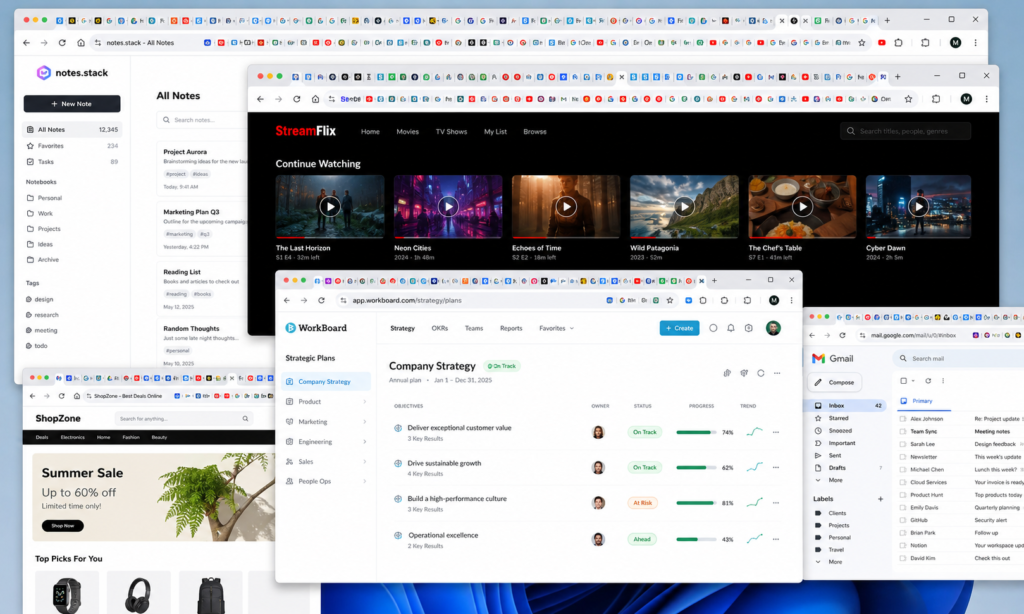
Modern browsers can use a significant amount of memory.
If your PC has dozens of tabs permanently open along with multiple browser extensions, they may consume more resources than expected.
Open Task Manager and compare memory usage before and after closing unused tabs.
Also review extensions you no longer use.
Gaming PCs frequently have several launchers running simultaneously:
You may also have recording and overlay software active.
You don’t necessarily need to remove them, but there is rarely a need to have every launcher automatically open when Windows starts.
Sometimes there isn’t a hidden setting to fix.
If your computer has:
then software optimisation can only achieve so much.
Before replacing the entire computer, however, it is worth identifying the actual bottleneck.
A RAM, SSD or graphics-card upgrade may be considerably cheaper than buying a completely new PC.
Open Task Manager by pressing:
Ctrl + Shift + Esc
Select:
Performance
Pay attention to:
Repeatedly reaching close to 100% may mean the processor is overloaded.
Very high usage may indicate that you need to close applications, reduce background software or install more RAM.
Regular 100% disk usage can indicate slow storage, heavy background activity or storage problems.
Useful when diagnosing gaming performance or checking whether applications are using the correct graphics processor.
If you’re troubleshooting a slow computer, we’d suggest working through the following order:
This avoids making complicated BIOS or hardware changes before eliminating the simple problems.
You don’t need to risk changing BIOS settings or dismantling your computer just to find out whether it is running properly.
We can inspect your computer and check for:
We can then explain what is slowing your PC down, what actually needs changing and what isn’t worth spending money on.
No unnecessary upgrades. No mystery “PC optimisation” packages.
Just a properly configured computer.
Spartan IT Systems provides computer repairs, upgrades, gaming PC support and home IT services throughout Suffolk, including:
Ipswich, Bury St Edmunds, Stowmarket, Woodbridge, Felixstowe, Sudbury, Newmarket, Lowestoft, Haverhill, Beccles and surrounding areas.
Contact Spartan IT Systems and let us check whether you’re getting the performance you’ve paid for.
Whether you’re struggling with performance issues, need spyware removal, or simply want help setting up new equipment, Spartan IT Systems is ready to assist. We offer expert computer services that cover everything from initial setup to ongoing maintenance, helping you make the most of your technology. By choosing us, you’ll benefit from cost-effective solutions, clear advice, and a support plan that’s built around your unique needs as a home user.
Our friendly team is here to ensure your systems remain reliable, secure, and efficient all the time. Get in touch today to learn more about how we can help you with PC repairs, Apple devices, wireless networks, or even the setup of a brand-new computer. With Spartan IT Systems, you’ll always have the ability to keep your technology running smoothly and stay connected.
Yes, we provide a PC Speed Up service. The benefits received vary from system to system depending on hardware, software & age. As a final resort, we can reinstall the Windows Operating System altogether.
We recommend reinstalling Windows every 2 years. With features like OneDrive- backing up and restoring files after the reinstall is very straight forward.
Most of the time you do not need to purchase a new PC or laptop, and some simple upgrades or servicing can get it as good as new- aside the signs of wear and tear!
What service do you require?
Please enter your contact details:
Please upload images related to your issue:
Thank you! Someone will be in touch with you shortly.